Each TrapScan card is a reusable link to a trap. Once you've linked a card, scanning it opens that trap's check form. Cards arrive unlinked, so you'll need to place each one at or near its trap and activate it.
Placing or attaching cards
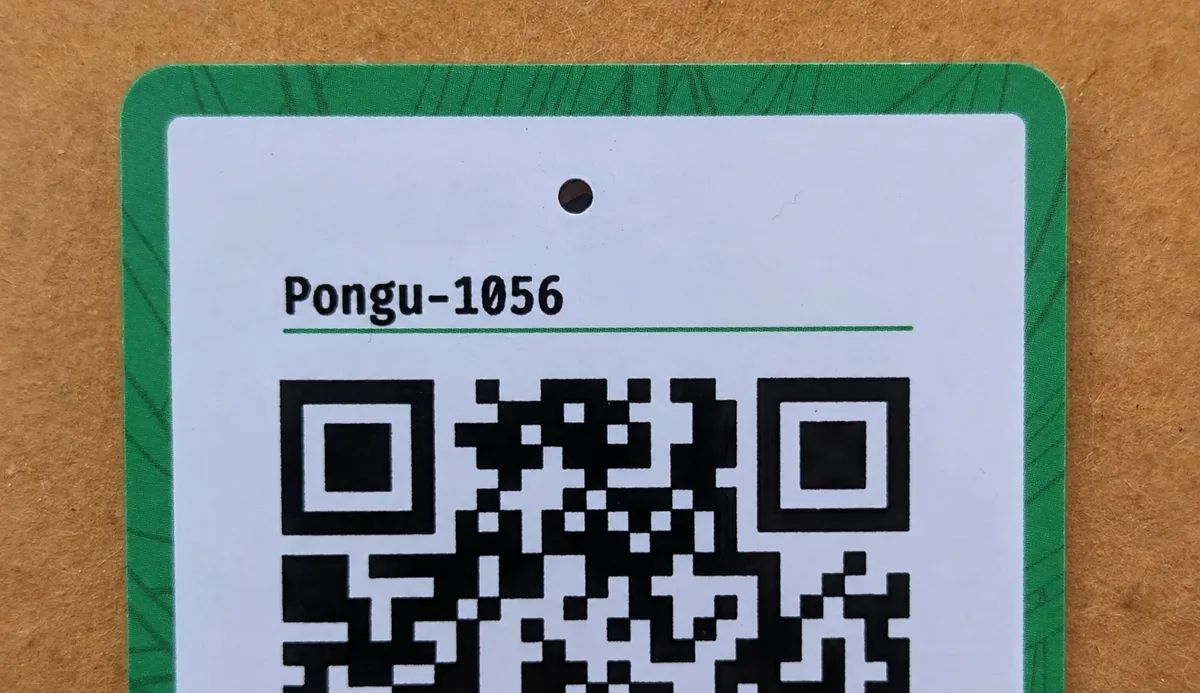
TrapScan cards are made from weather-resistant PVC and are about the size of a credit card. Each has a hole at the top for attaching it with a small nail or screw.
You can also use:
- Glue
- Blu Tack
- Double-sided tape
- String or wire through the hole
- A staple, although this can split the card
The card can be attached directly to the trap or kept somewhere convenient nearby. For traps around your home, you can even keep the card inside the house.
Activating a card
To activate a new card, log in to TrapScan and scan it. You'll see this message:
"This card needs to be linked to a trap to activate it"
You can then:
- Link to an existing trap. Search or scroll through the project's traps and select the one you want to link.
- Create a new trap. TrapScan captures its location using your phone's GPS or a map pin, then asks you to enter the trap type and name.
Once the card is linked, every subsequent scan opens that trap's check form.
You can also activate cards without an internet connection. See How offline mode works for instructions.
When a card won't scan
If the QR code won't scan, select Enter ID and type the Card ID printed at the top of the card. When you're online, you need to be logged in to enter a Card ID manually.
Replacing cards
You can replace a lost, damaged or unreadable card without affecting the trap or its check history. To replace an existing card, you must be the person who linked it, the trap's creator, or a manager of the trap's project.
- Attach a new card to the trap.
- Scan the new card, select Link to an existing trap, and choose the trap.
- TrapScan will warn you that the trap already has a linked card. Select Yes to replace it.
The old card is then available for reuse. Cards can be linked and unlinked as often as needed, while each trap keeps its own details and check history.
Permissions
Project managers can activate unlinked cards remotely. On the Scan page, select Enter ID and type the Card ID.
You can replace an existing card if you linked it, created the trap, or manage the trap's project. You can also unlink a card if you manage the project the card is assigned to. TrapScan administrators can unlink cards too.